Dispatch a job from the Dispatch Board
The Dispatch Board shows your whole crew's day at a glance — one row per technician, one column per hour.
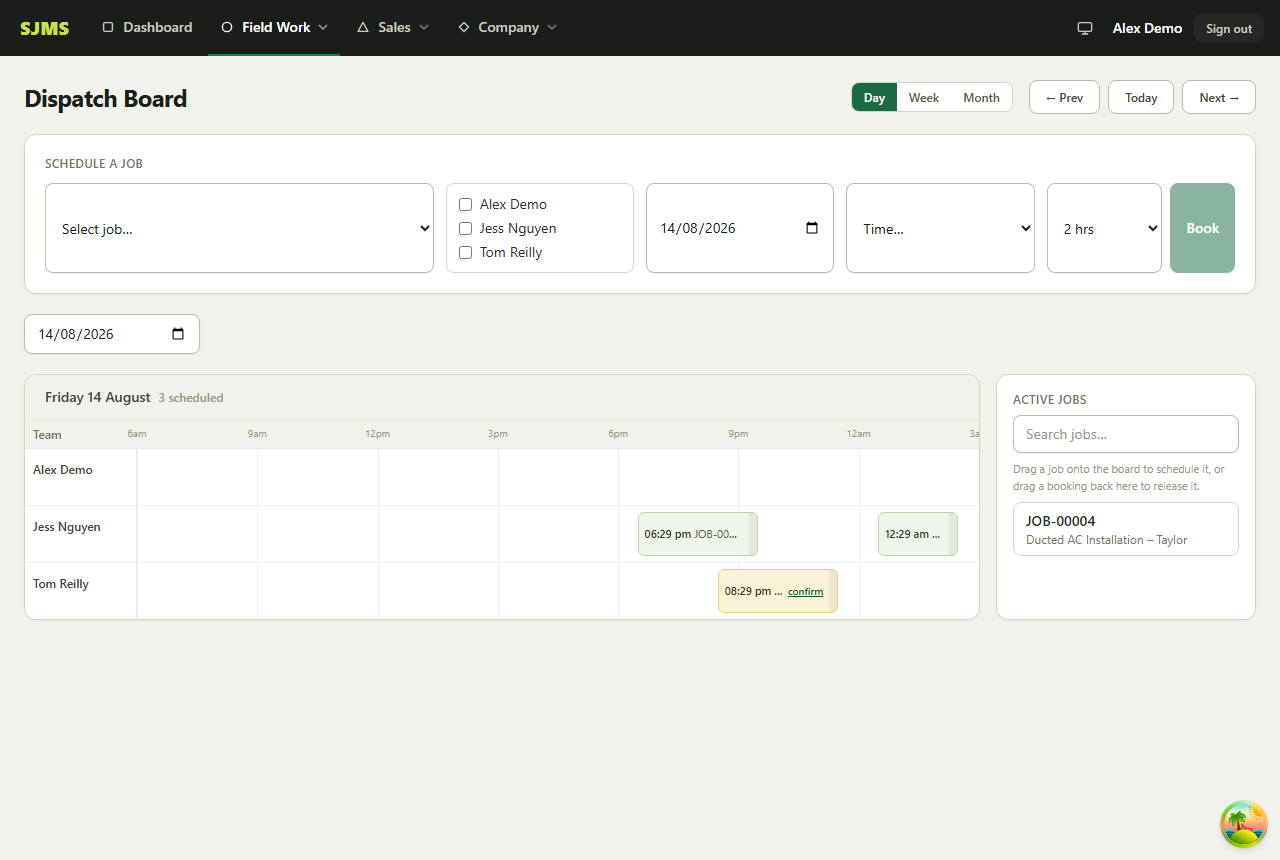
- 1Open Field Work → Dispatch Board.
- 2Find the job under “Active Jobs” on the right — jobs land here once they're created but not yet booked.
- 3Use the “Schedule a Job” panel at the top: pick the job, tick the technician(s), set the date, start time and duration, then click Book. Or drag the job straight onto a technician's row at the time you want.
- 4The job appears as a block on that technician's row — drag it to a new time or technician any time to reschedule.
Good to know: Switch between Day, Week and Month views top-right, and use ← Prev / Today / Next → to move between dates.